What’s New?
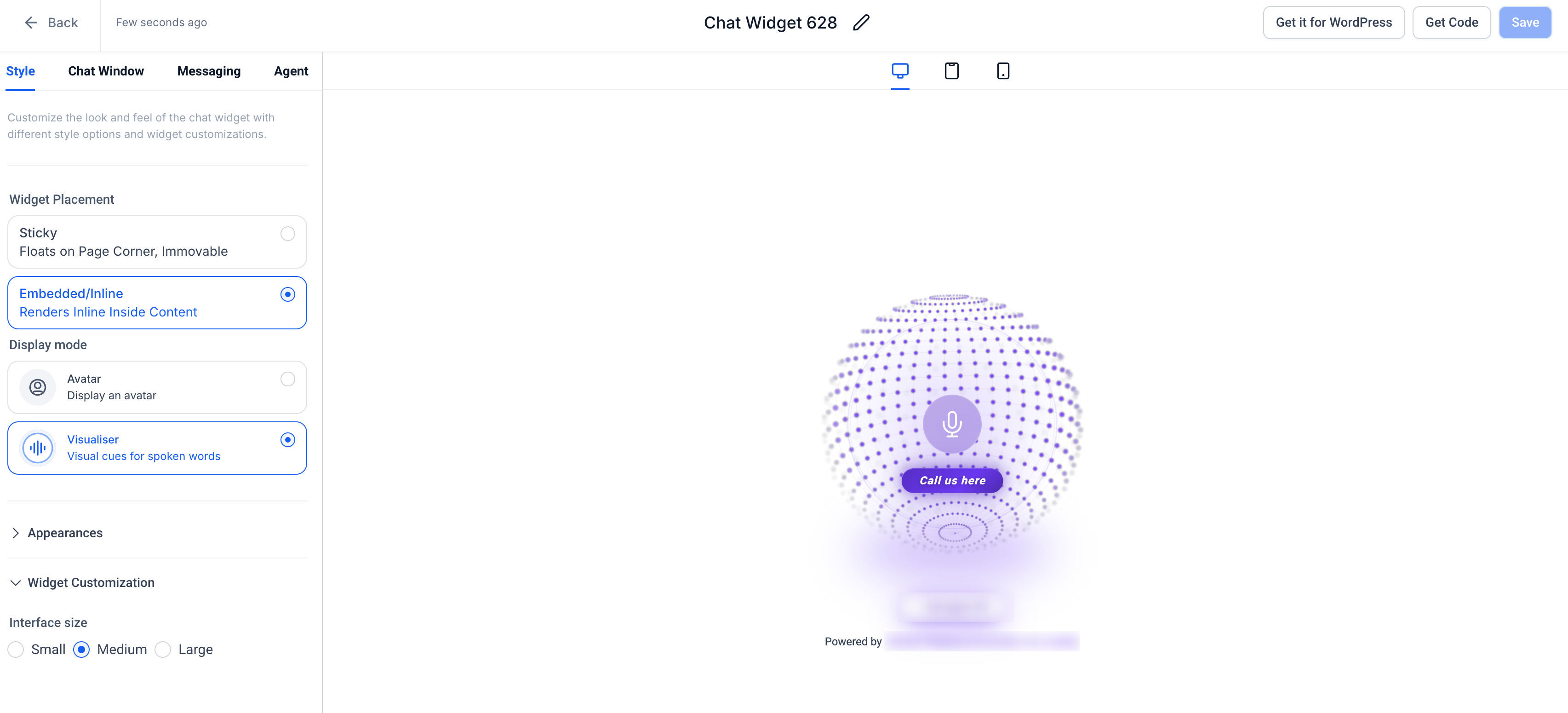
- New Widget Placement control introduced at the top of the Style tab:
- Sticky – floating widget on page corner (default)
- Embedded/Inline – renders Voice AI widget inside website content
- Added Display Mode selection for embedded widgets:
- Avatar – static visual representation
- Visualiser – dynamic voice-based visual cues
- Introduced Interface Size customization (Small, Medium, Large) for Visualiser mode.
- Real-time preview updates based on placement and display selection.
- Inline widget now shows CTA below avatar/visualiser (e.g., “Call us here”).
How It Works:
- Navigate to Sites > Chat Widget > Style tab.
- Select Widget Placement: Sticky or Embedded/Inline.
- For Embedded:
- Choose Display Mode (Avatar or Visualiser)
- If Visualiser is selected > user can choose to configure the Interface Size.
4. Customize remaining available styling options.
5. Copy code via Get Code:
- Sticky > floating script
- Embedded > inline embed snippet (div/iframe)
6. Paste code into your website where you want the widget to appear.

Why It Matters:
- Enables non-intrusive Voice AI experiences embedded directly into website layouts.
- Unlocks design flexibility for landing pages, funnels, and content-driven sites.
- Introduces visual interaction patterns (visualiser) for more engaging voice experiences.
- Lays the groundwork for highly customisable Voice AI widgets across different use cases.
- Supports better conversion-focused placements vs generic floating widgets.
What’s Next?
Enhanced customisation and personalisation with new visualiser options.
Notes:
- Some customisation options (like widget position & contact form toggle) are disabled in Embedded mode of voice AI widgets.
- Display Mode variations are currently optimised for Voice AI experiences.
- Multiple embedded widgets can be used across the same site.
Was this article helpful?
That’s Great!
Thank you for your feedback
Sorry! We couldn't be helpful
Thank you for your feedback
Feedback sent
We appreciate your effort and will try to fix the article